For car dealerships
Car dealership photo background removal without a photo studio
AutoShot replaces the surroundings in your car photos with a studio-style backdrop. Upload up to 10 photos together, choose a background and review each result against its original before adding it to a listing. Start with clear exterior photos that show the whole vehicle.
Try 10 photos freeSee the background change
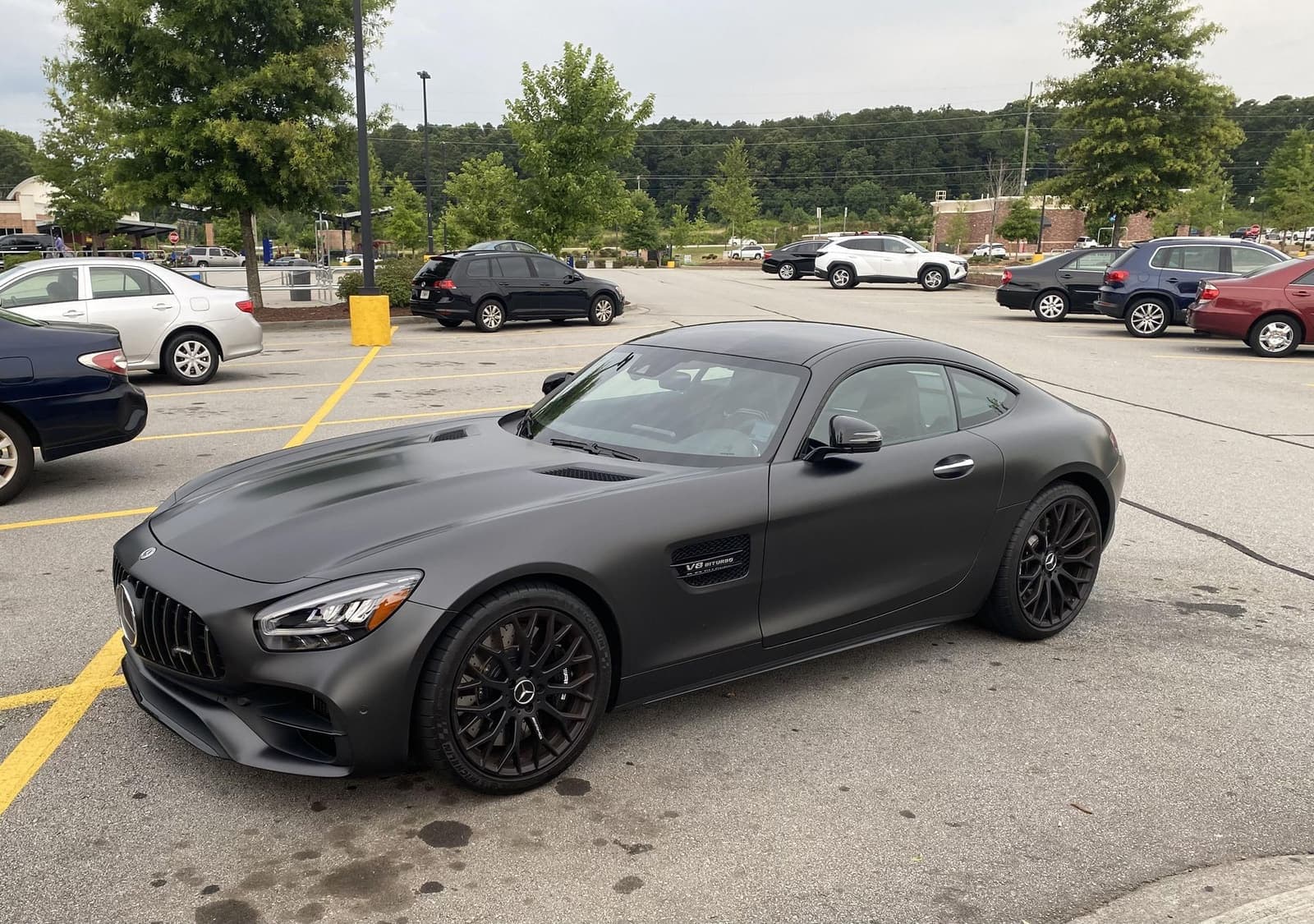
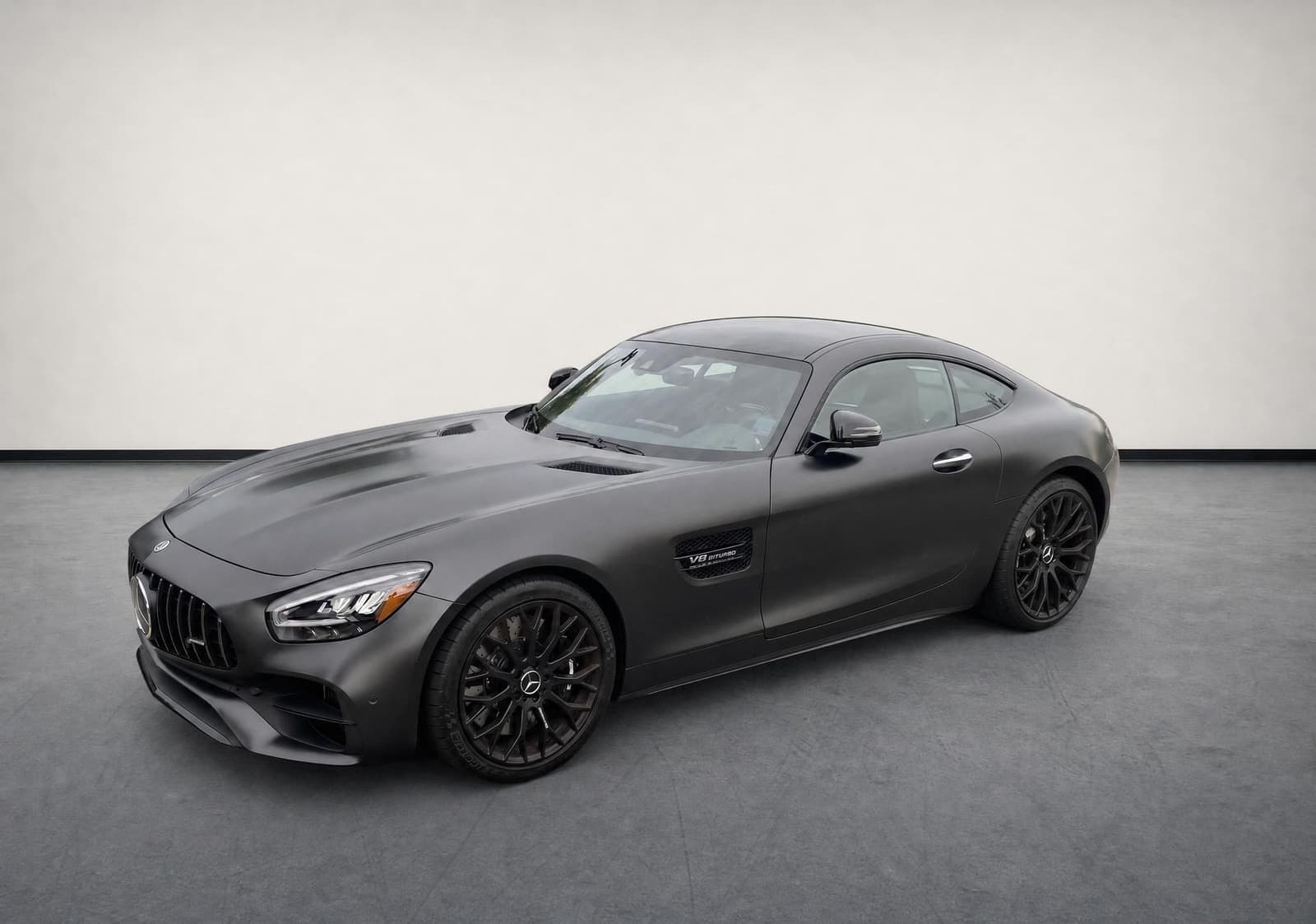
This example, also shown in our phone photography guide, shows a dark coupe on a busy car park and on a studio-style background. Compare the mirrors, glass, wheels and body outline as well as the scene behind the car. One example cannot tell you how every photo will turn out.
Prepare a dealership batch
- Choose usable originals. Keep the complete vehicle visible and leave space around it. Avoid people, poles or another car covering its outline. Retake a blurred image instead of expecting background editing to recover missing detail.
- Choose a repeatable style. AutoShot offers five studio backgrounds. Use the same choice for a group of exterior listing photos; consistent framing and lighting still begin with the camera.
- Set your optional controls. A dealer logo can be stamped in the upper-left corner of exterior results. Plate blur or plate-logo treatment is optional and in beta; inspect the plate area on every result.
- Upload and review. Upload up to 10 photos at once, then compare each completed image with its original. Download the accepted results and check your marketplace’s current upload requirements.
For a repeatable capture routine across different cars, use our inventory photo consistency workflow. AutoShot prepares images; it does not upload listings or validate marketplace-specific file rules.
What should you check before publishing?
The edit is instructed to preserve the vehicle, but generated results need a human check. Look closely at mirror edges, wheel spokes, badges, glass, reflections and any visible wear. Reject a result that changes a vehicle detail or conceals damage. Keep the original as your reference.
A studio-style backdrop cannot fix an obstructed vehicle, a missing angle or inconsistent capture height. Keep honest detail and damage photographs alongside the exterior presentation images. Our Facebook Marketplace photo preparation page explains how to review images before a listing upload.
Questions about car photo background removal
Can I edit interior photographs?
AutoShot also handles interiors by replacing the scene visible through the windows. Review the cabin, window boundaries and reflections separately. Dealer logo stamping applies to exterior results.
Will every licence plate be blurred?
No result should be assumed to have a successful plate treatment. The optional beta can skip treatment when a suitable plate is not detected. Check the final image, including small or angled plates, before publishing it.
Can I try my own photos without paying first?
Your first 10 photos are free and do not require a card. One credit covers one processed photo. Later credit packs are one-time purchases. An image that fails to process is refunded automatically; a completed image still needs your quality review.
What if a photo has no background to replace?
Badge or engine close-ups with no replaceable background are refused without spending a credit. Keep those originals in your listing when they help a buyer understand the vehicle.
Choose a few representative exterior photos and try 10 photos free. Keep the results that accurately represent your car.